
Browser
How to use the NNScholar desktop Browser module, with screenshot guidance and completion checks.
Browser is the embedded research browser. Use it to inspect external pages without breaking the workspace flow.
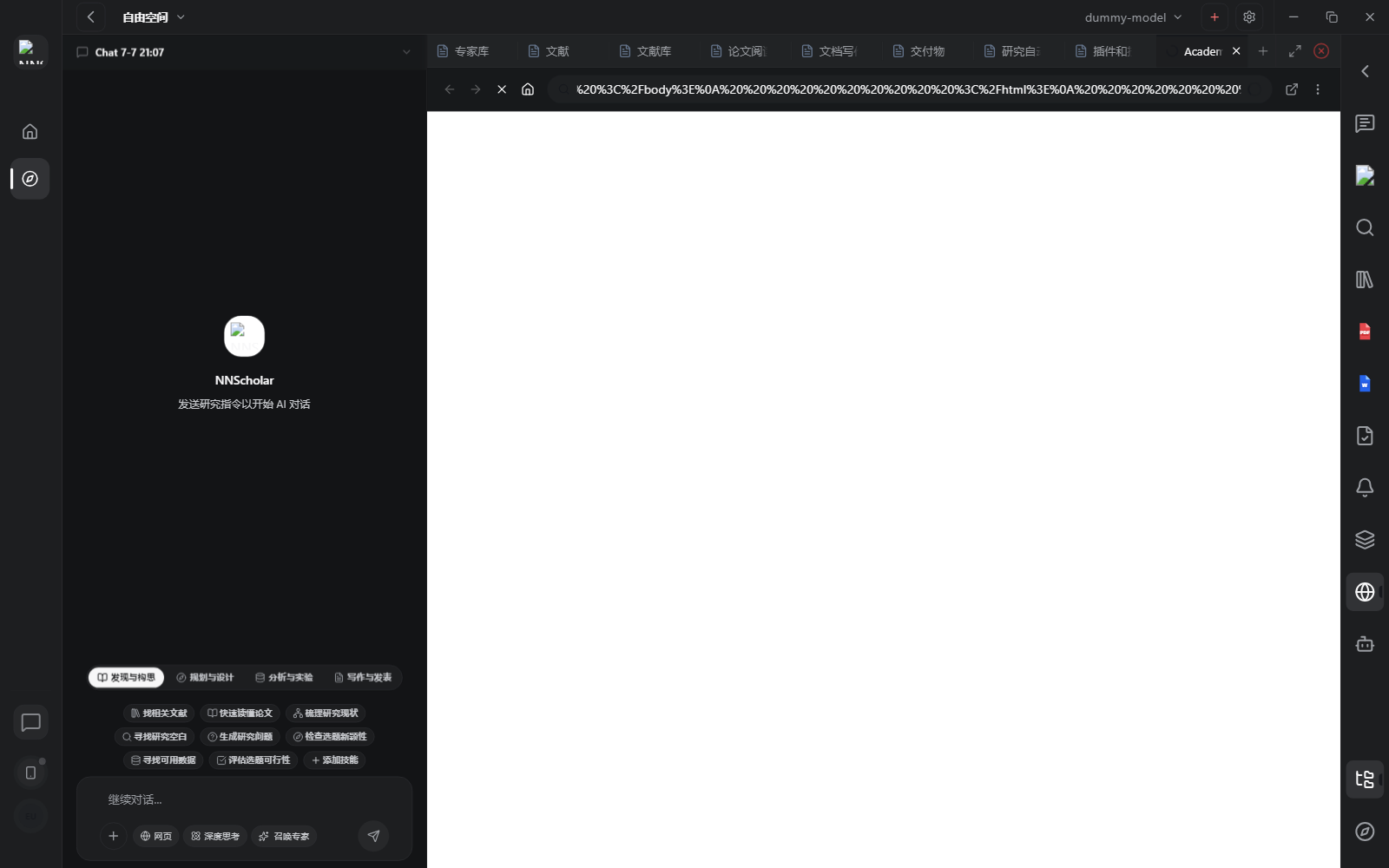
When it opens, you see browser tabs, the address bar, back/forward/reload, external-open, and more actions. The screenshot shows the Browser shell; in normal use, this area displays publisher pages, database entries, guidelines, journal submission portals, or DOI links for source checking and submission preparation.
Browser also works with the academic skills above the Chat input. For example, the Automatic submission assistant sits in the Writing-Publication phase. It helps prepare the submission checklist, manuscript files, author details, declarations, and cover letter, then guides the user through the journal submission portal inside the embedded Browser. The boundary matters: the assistant can help prepare and fill the workflow, but it should pause before final submission so the user can confirm.
Use Browser for:
- opening publisher pages, preprint pages, dataset portals, guidelines, software docs, or DOI links
- checking whether a source page supports a claim
- following references from a paper or search result
- comparing external pages while Chat, Literature, or Library remain available
- capturing useful context before bringing it back into the research space
- using the Automatic submission assistant to inspect a journal portal, file upload requirements, author fields, declarations, and final pre-submit checks
How to use it:
- Open Browser when the evidence lives on a web page rather than in a saved paper.
- Navigate to the source page, database entry, publisher page, or documentation page.
- Inspect the information needed for the current research task.
- Save or cite useful information in the module that will preserve it: Literature for papers, Library for references, Chat for reasoning, Document Writing for final text.
- For submission work, select Writing-Publication -> Automatic submission assistant in Chat first, then use Browser to open the journal submission portal. Follow the checklist for manuscript files, authors, funding, conflicts of interest, ethics statements, suggested reviewers, and pre-submit review.
- Avoid letting Browser become the only record of a source. Move useful evidence, submission requirements, or checklist items back into the workspace.
Before leaving Browser, check that the useful external information has been saved, cited, or routed to the right NNScholar module. If you are submitting a manuscript, final submission must still be confirmed by the user.
Example Demo
Scenario: the Automatic submission assistant has prepared a checklist and you need to verify fields in the journal portal.
How to run it:
- Confirm the checklist in Chat: manuscript files, figures, supplements, authors, funding, ethics, conflicts, and cover letter.
- Open Browser and go to the target journal submission system.
- Check page fields and upload requirements against the assistant's checklist.
- Save special portal requirements back to Document Writing or Deliverables.
- Pause before final submission so the user confirms it.
Browser becomes the submission inspection surface, not just a generic web window.
Next Step
Return to the right-rail module overview, or move the current output into the next module in the workflow.