
Plugins And Skills
How to use the NNScholar desktop Plugins And Skills module, with screenshot guidance and completion checks.
Plugins and skills is the capability management module. Use it when the workspace needs tools beyond the built-in modules.
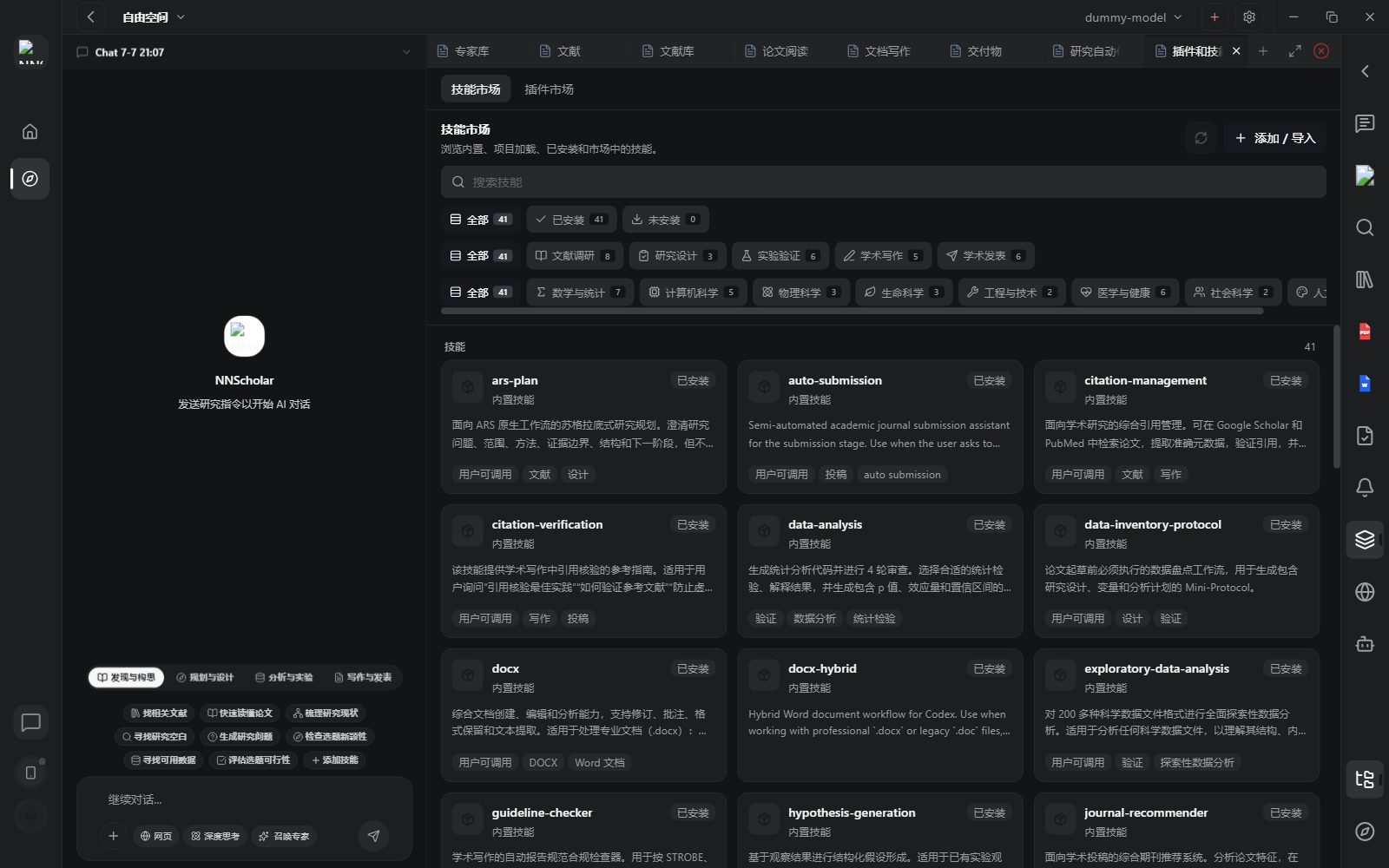
When it opens, you see the skill market, plugin market, installed status, categories, search, and add/import actions. It should feel like the workspace capability center: before asking an agent to use Zotero, citation management, statistics, submission support, or a specialized workflow, confirm the capability here.
There are two related skill surfaces. The 4-phase skill strip above the Chat input is the quick task launcher for common academic workflows. Plugins and skills is the capability management center: it shows which lower-level skills, plugins, MCP servers, and extensions are installed and available to the workspace.
Use Plugins and skills for:
- viewing installed apps, plugins, skills, MCP servers, and extensions
- installing or enabling capabilities that Chat, experts, or workflows can call
- checking what a capability can access
- understanding whether a tool is local, remote, read-only, or able to modify files
- removing or avoiding capabilities that are not needed for the current project
- confirming that submission support, browser automation, reference management, or statistical-analysis capabilities are available
How to use it:
- Open Plugins and skills before asking an agent to use a capability you are not sure is installed.
- Check the capability description and trust boundary.
- Enable only the tool needed for the current workflow. For submission work, confirm that submission support, Browser-related capability, and file handling are available.
- Return to Chat or Expert library and name the capability you expect the assistant to use. A common flow is to choose Writing-Publication -> Automatic submission assistant above the Chat input, then let it use Browser to inspect the submission portal.
- Review outputs carefully when the capability touches external services, local files, credentials, or generated code.
Before leaving Plugins and skills, check that the enabled capability is relevant, understandable, and safe for the current workspace.
Example Demo
Scenario: you are preparing submission and want to confirm whether the Automatic submission assistant can work with Browser.
How to run it:
- Open Plugins and skills and confirm the submission-related skill is available.
- Check whether it needs an external account, browser permission, or user confirmation.
- Return to Chat and choose Writing-Publication -> Automatic submission assistant.
- Ask the assistant to generate the submission checklist before opening the journal portal in Browser.
At completion, you should know whether the capability is enabled, which pages it can use, and which steps require your confirmation.
Next Step
Return to the right-rail module overview, or move the current output into the next module in the workflow.