
Library
How to use the NNScholar desktop Library module, with screenshot guidance and completion checks.
Library is the durable reference workspace. It should contain the papers you intend to read, compare, cite, or use as evidence.
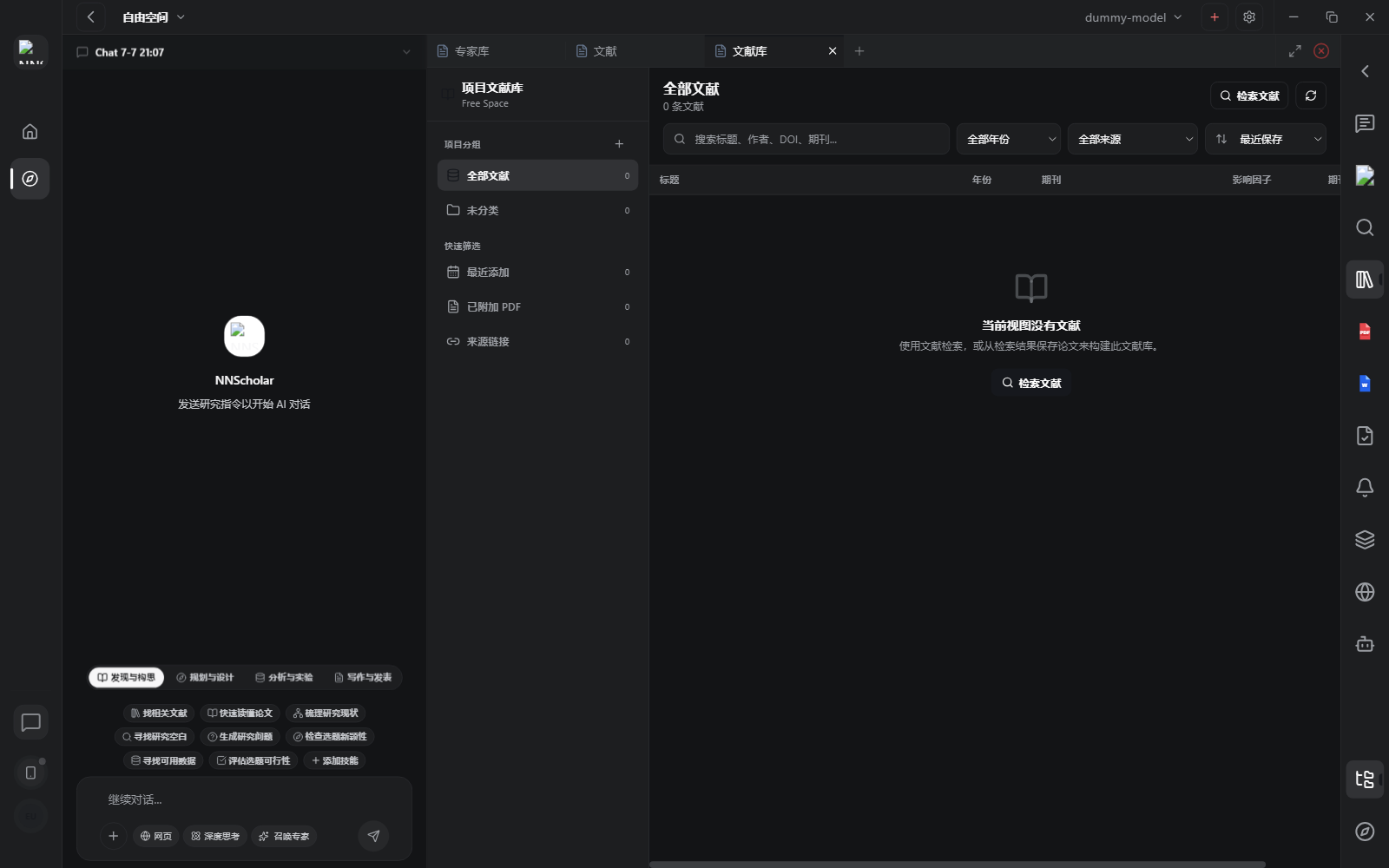
When it opens, you see project groups, all papers, uncategorized items, recently added items, attached PDFs, source links, and the main saved-paper list. It should feel like the project evidence cabinet: search finds papers, but Library keeps the papers that matter.
Use Library for:
- browsing saved references and PDFs
- creating folders for projects, topics, inclusion stages, or manuscript sections
- searching, filtering, and sorting saved items
- renaming or deleting folders when the reading structure changes
- moving references between folders
- opening a saved paper, PDF reader, or follow-up literature search from an existing item
How to use it:
- Create folders that reflect the research workflow, not just broad topics. Examples:
screened-in,methods,baseline papers,reviewer 2, orfigure sources. - Save papers from Literature into the right folder as soon as they pass screening.
- Use search and sort when a folder grows too large to inspect manually.
- Move papers when their role changes, such as from candidate paper to included evidence.
- Open important PDFs in Paper reading for detailed reading and translation.
Before leaving Library, check that the reading set is complete, folder names are meaningful, duplicate or irrelevant items are not polluting the set, and the next paper to read is clear.
Example Demo
Scenario: Literature saved 30 papers about PCAT, coronary CTA, diabetes, and prognosis.
How to run it:
- Create four Library folders:
core-references,methods,background, andexcluded. - Move must-read papers into
core-referencesand methods papers intomethods. - Check whether each core paper has an attached PDF; mark missing PDFs for follow-up.
- Open the first PDF from
core-referencesin Paper reading.
Your library should feel like a project cabinet: must-read papers, methods support, and background sources are visibly separated.
Next Step
Return to the right-rail module overview, or move the current output into the next module in the workflow.