
Side Chat
How to use the NNScholar desktop Side Chat module, with screenshot guidance and completion checks.
Side chat is for a focused question that should not derail the main conversation. It starts from a snapshot of the current workspace, recent messages, and active module state.
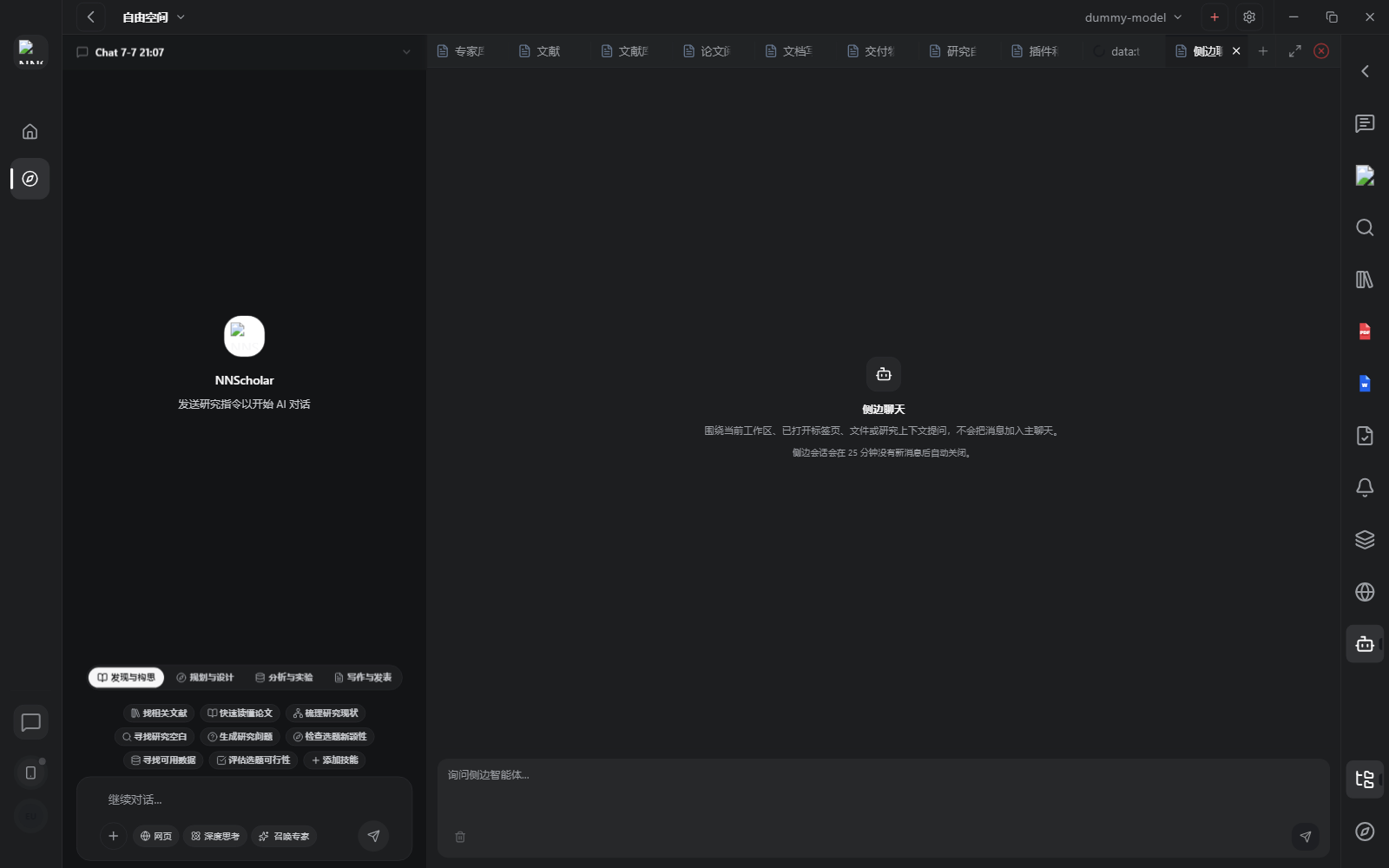
When it opens, you see a separate side-chat input area. It does not replace the main Chat. Use it as a temporary branch for one focused question about the current workspace, active tab, selected files, or recent context, then decide whether to merge the answer back into the project.
Use Side chat for:
- asking a narrow follow-up while keeping the main chat stable
- testing an alternate interpretation or plan
- re-planning from the current workspace state
- asking about the active module, selected files, or recent context
- separating quick reasoning from durable project history
How to use it:
- Open Side chat from the current workspace instead of starting a separate project.
- Ask one focused question.
- Use the workspace snapshot as context, but restate the exact output you want.
- If the answer changes the project direction, summarize it back into the main Chat or move it into the right module.
- If it was only exploratory, leave it as side reasoning and do not promote it.
Before leaving Side chat, decide whether the result should be folded back into the main project, sent to another module, or discarded.
Example Demo
Scenario: the main Chat is drafting a manuscript, but you want to check whether the current papers support a subgroup analysis without interrupting the main thread.
How to run it:
- Open Side chat.
- Ask: "Based on the current Library and open PDFs, which papers support a diabetes subgroup analysis, and where is the evidence weak?"
- Ask Side chat to produce only a decision checklist, without editing the manuscript.
- If the conclusion matters, merge it back into the main Chat or Document Writing.
You get a clean reasoning branch. Only conclusions that change study design or manuscript text return to the main thread.
Next Step
Return to the right-rail module overview, or move the current output into the next module in the workflow.